 YouYoung Seo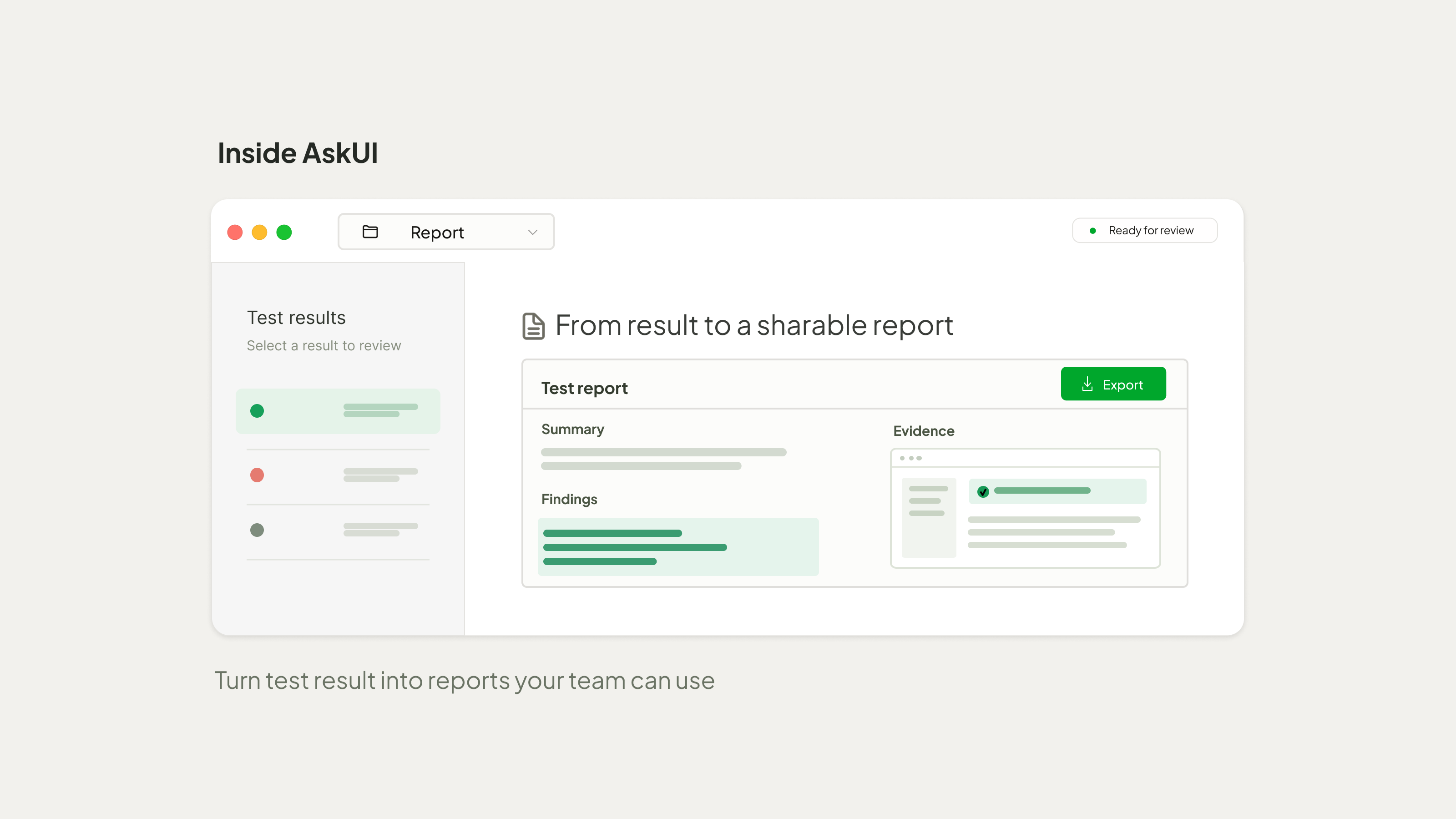
In our previous article, we explored how Forge helps testers extend what their agents can test. As those tests become part of a team’s validation process, their results need to be understood by people who did not write the instructions or watch the execution.
Readers of the reports need to know what was checked, what the agent observed, and how the evidence supports the outcome. This helps testers decide where to investigate, gives developers a clear comparison of expected and observed behavior when an assertion fails, and helps management review overall test outcomes with access to the findings behind figures.
Report connects test results to the execution details and evidence behind them. AskUI automatically creates distinct reports for every purpose. Execution reports document individual tests, including their observations, outcomes, and an interpretation of the results. Management reports analyze outcomes and statistics across multiple selected runs, for broader review and sharing.
To see this in practice, we ran eight tests on a Honda IVI emulator, covering app navigation and settings screens. Six passed, while two intentionally incorrect expectations caused failures for demonstration.
Review a Completed Run
Open Runs in AskUI Desktop and select an execution from the sidebar. Beneath it, several views let you move from the overall outcome to a specific test and its execution details.
| View | What it helps you understand |
|---|---|
| Conversation log | The execution sequence, including agent messages, tool calls, and screenshots. Colored test tiles provide an overview and navigation to individual tests. |
| Summary report | A condensed and compact overview of the run’s totals, including each test’s status and duration, and recorded issues for tests that need attention. |
| Developer Report | An audit-ready and detailed trace of every single agent interaction for analyzing and understanding agent behavior alongside duration, estimated cost, and token usage per step. |
| Individual execution reports | How each test was interpreted, what was expected, what was observed, and the supporting screenshots. |
For a visual overview, open Conversation log. The green and red tiles at the top show the passed and failed tests. Selecting a tile jumps to that test’s execution record.
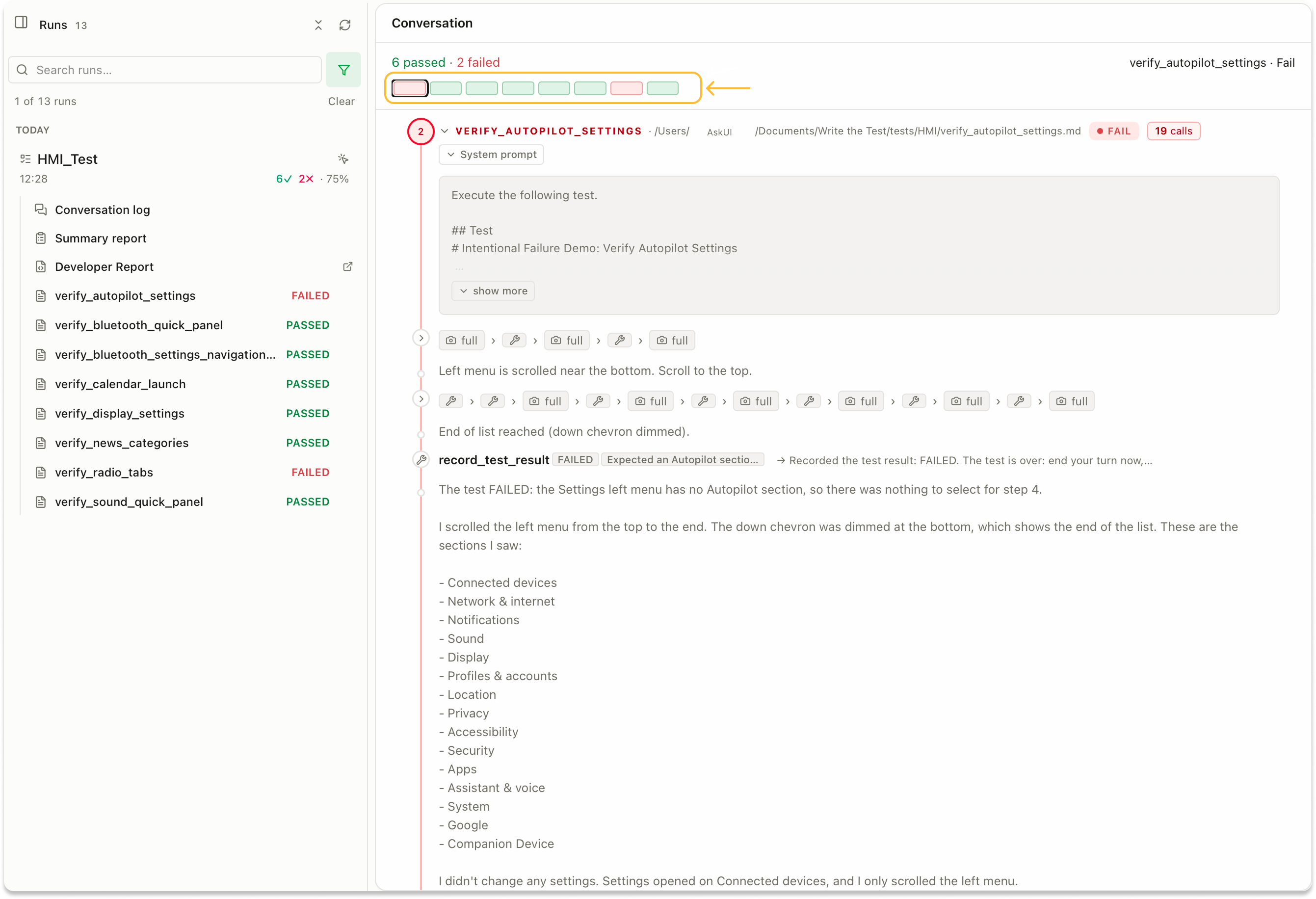
Colored tiles show individual test outcomes and provide direct navigation to their execution records.
For an “overview at a glance”, take a look at the Summary report, and decide where to focus your review. The test results table and recorded failure details help identify cases that need investigation before you open individual reports.
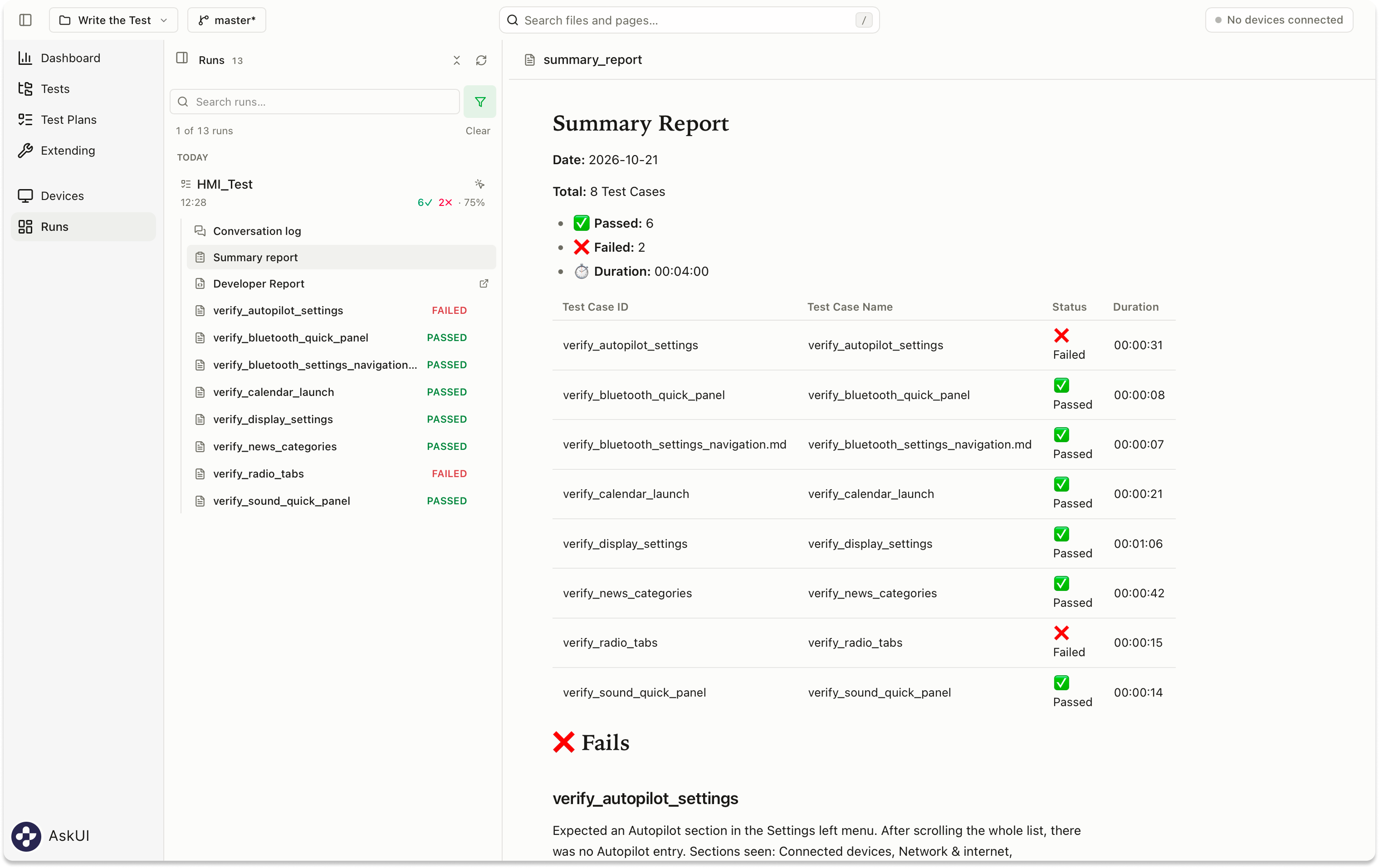
The Summary report shows overall results and the status and duration of each test in the selected run.
Once you have identified a test that needs attention, select its name in the sidebar to view its execution report, if one has been generated. We’ll follow verify_radio_tabs from its failed status to the specific expectation and observation behind it.
Execution Reports: Understand What Failed
Our Radio test checked whether the app contained a tab labeled Presets. The agent opened Radio successfully, but found Favorites, Tune, and Browse instead.
The execution report records these as separate steps. Opening Radio passed. Checking for Presets failed. Alongside each result, it presents the agent’s interpretation, the expected behavior, the actual observation, and a screenshot.
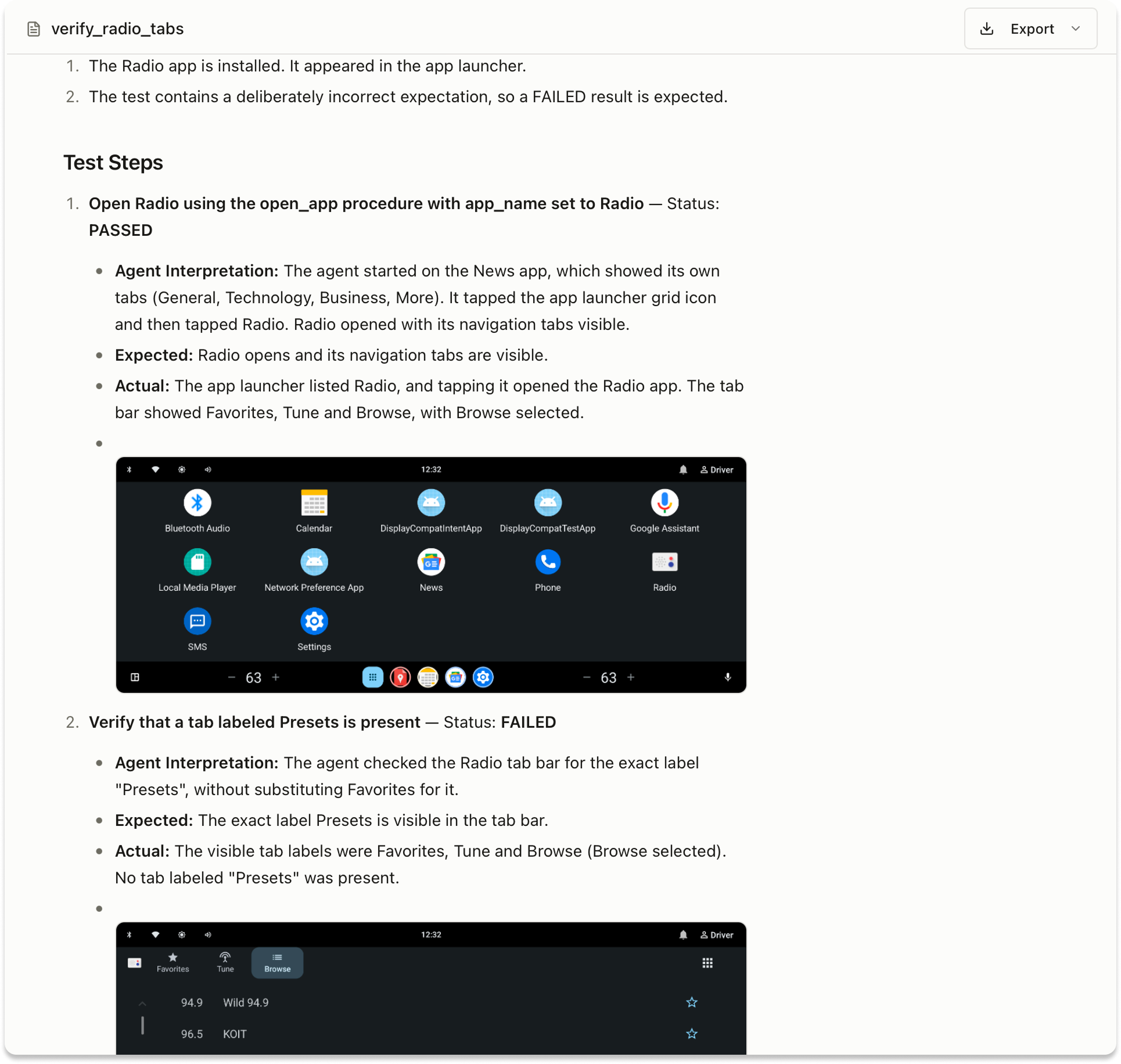
The Radio execution report separates the successful app launch from the failed Presets check, with the agent’s interpretation, expected and actual results, and screenshots.
The report also analyzes the failure. Its Issues section identifies the mismatch between the expected Presets tab and the available Favorites, Tune and Browse tabs. It notes that the interface matches the test’s reference description, explaining that the failure was the intended outcome of a deliberately incorrect expectation.
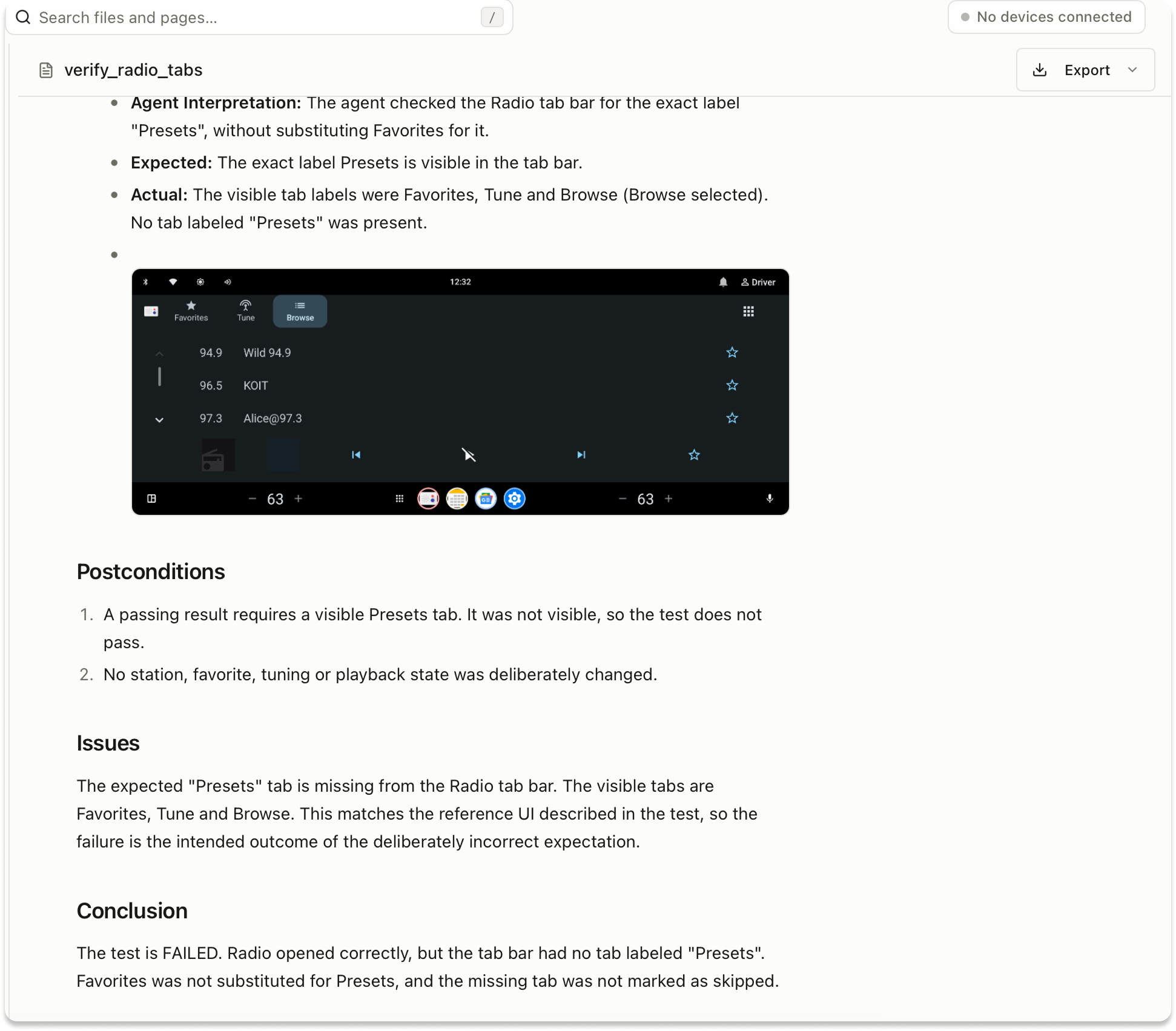
The Issues section explains why the deliberately incorrect expectation produced a failed result.
Understand What a Pass Confirms
A passed result also has a scope: what exactly did the test confirm? The Bluetooth report shows that the agent opened the quick settings panel, verified the required controls, and left Bluetooth enabled without initiating pairing.
This gives the team a concrete record of the check’s scope. Reviewers can use it to assess whether the tested behavior covers their requirement or whether additional checks, such as device pairing, are needed.
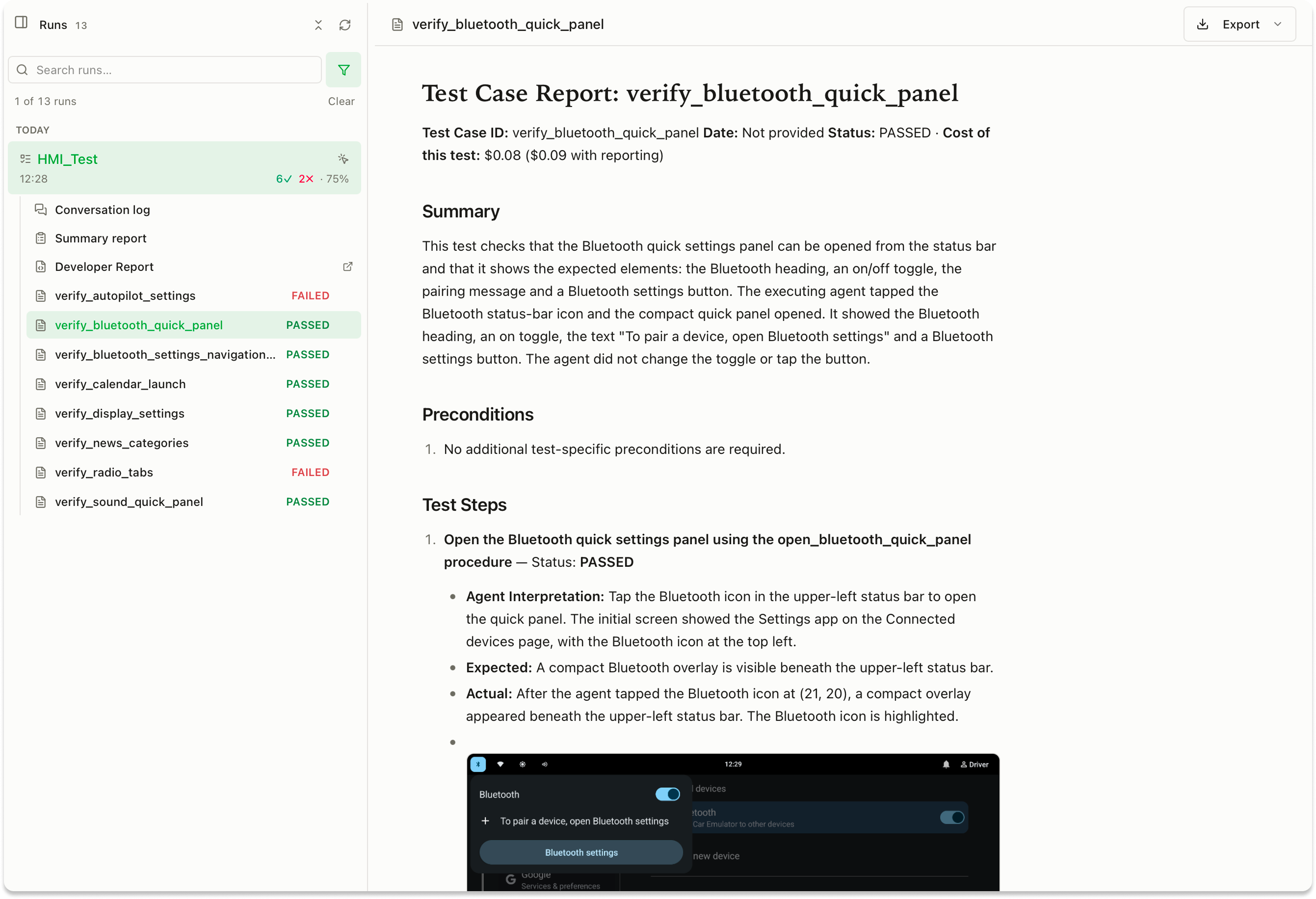
The Bluetooth report records the verified controls and preserved state behind the passed result.
Inspect the Execution Behind a Result
For a closer investigation, open the Developer Report beneath the selected run in Runs. The interactive HTML view shows agent messages, tool calls and their responses, and screenshots in execution order. Developers can inspect the actions leading up to a result, with duration, estimated cost, and token usage available to examine how execution resources were spent.
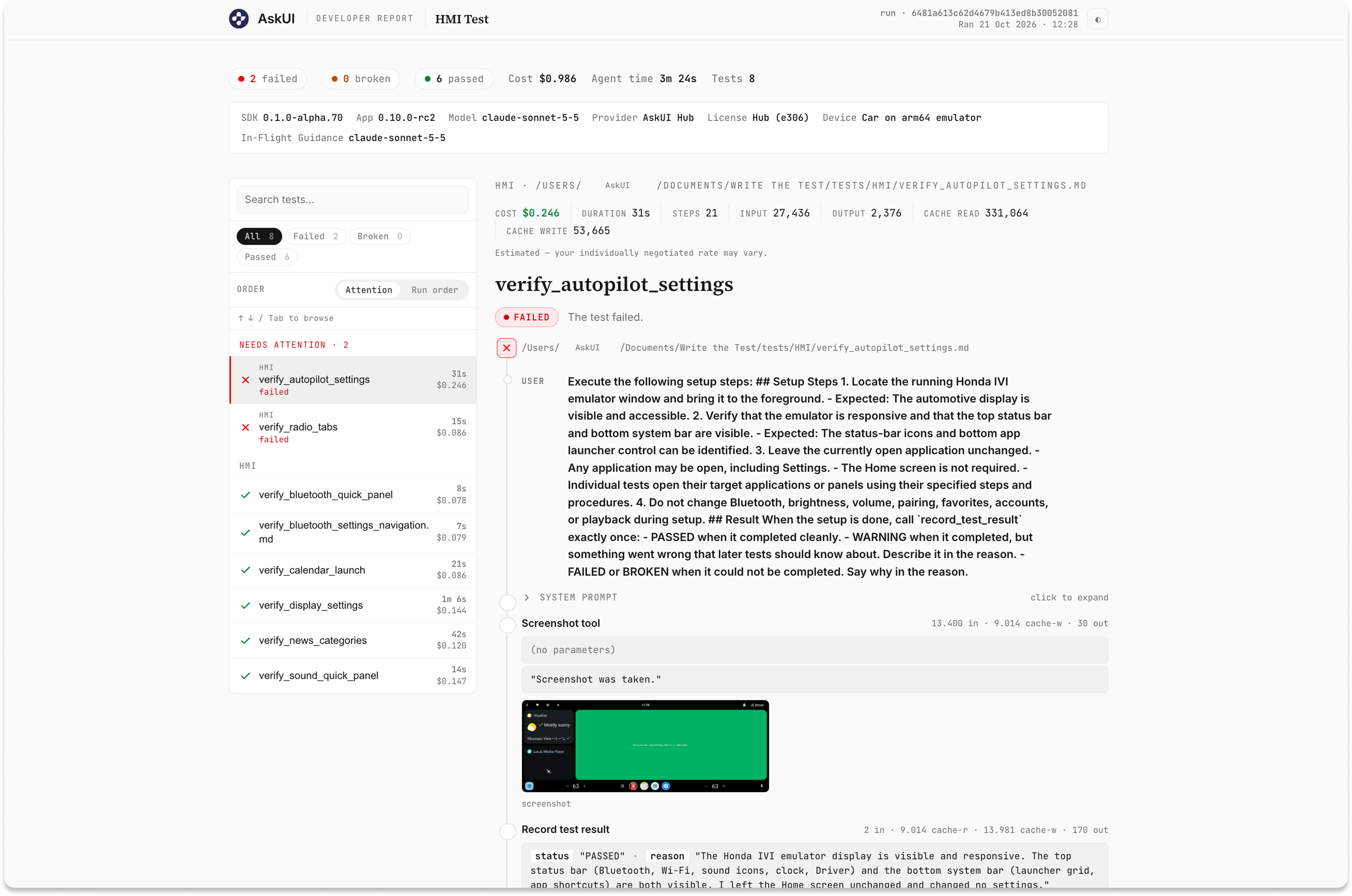
Inspect tool calls, responses, and screenshots in the Developer Report to follow how a test reached its result.
Management Reports: Review Results Across Runs
When sharing results with the wider team, individual findings need to sit alongside the overall picture. A Management Report brings selected runs into one document, with charts showing pass rates by test and execution counts over the reporting period.
From Runs, clear the current selection and choose Generate Management Report. Select a date range and the runs you want to include. You can also add details such as the software version, intended audience, and remarks to give readers context.
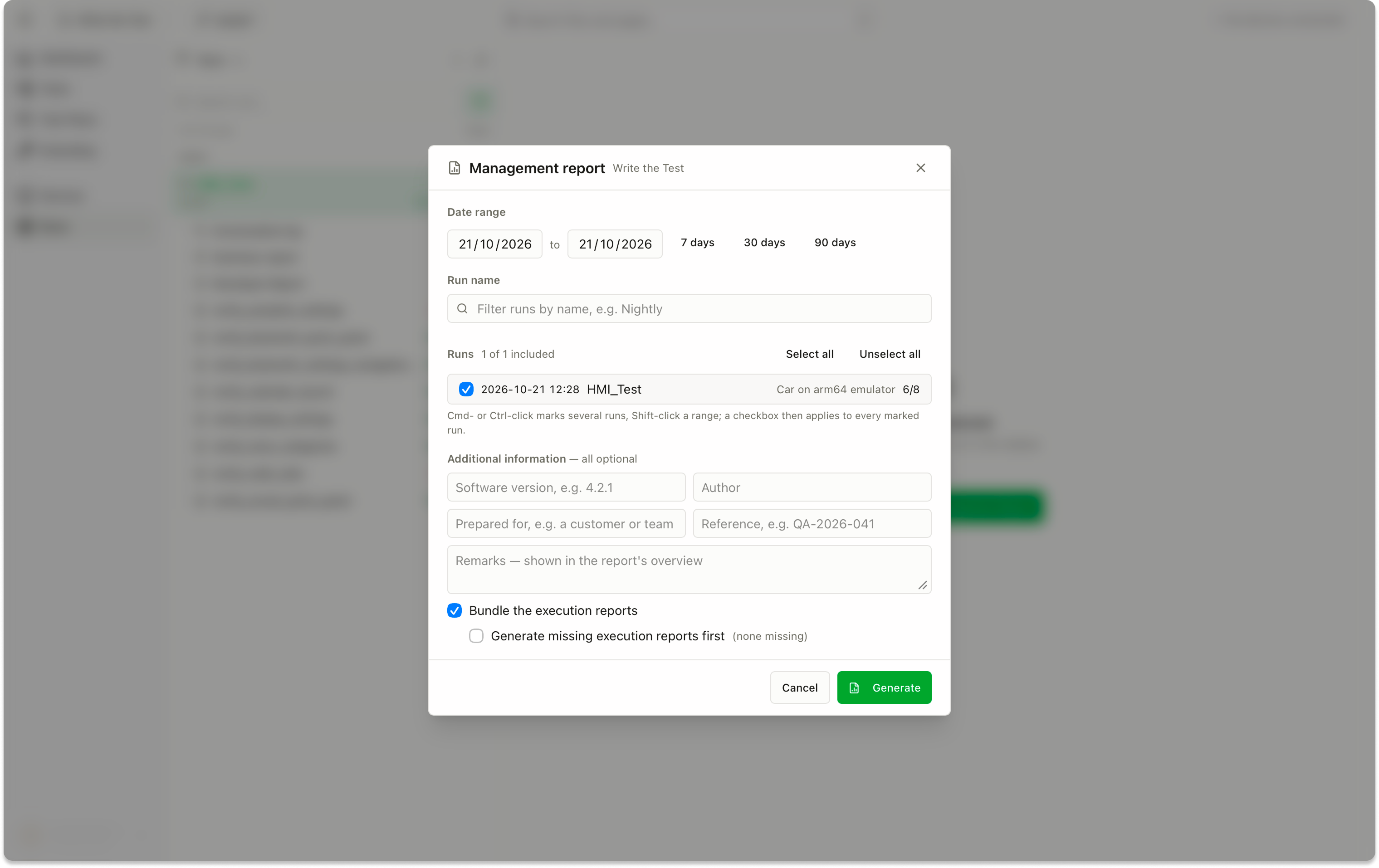
Choose the reporting period and runs to include in the Management Report.
For this example, we included a single Honda run. The report shows its 75% overall pass rate alongside a per-test breakdown, making it easy to see which checks passed and which failed.
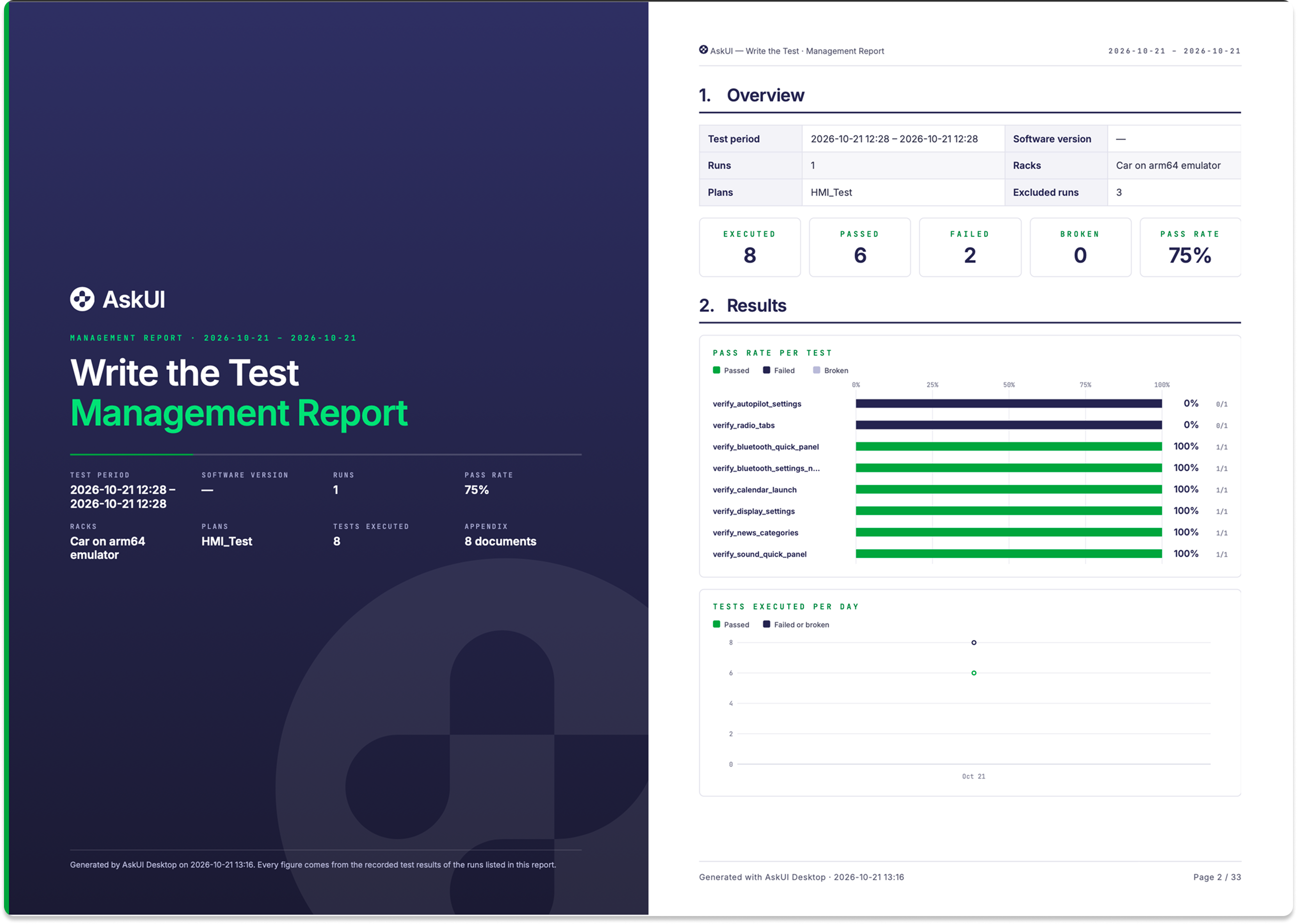
The selected run’s overall results and pass rates for each of the eight checks.
Select Bundle the execution reports when generating the report to include individual execution reports in the appendix. Links in the report let readers navigate to the details of a particular test, including plain-language descriptions of the expected and observed results, along with supporting screenshots.
You can export the report as a PDF, JSON and JUnit XML to make the recorded results available for processing in other tools and reporting workflows.
Choose When and How Reports Are Generated
In Extending → Reporting, teams can choose which execution reports to generate automatically and request others later when needed.
- Always creates a report for every finished test. This is the default.
- Only for failed or broken tests focuses automatic reporting on those outcomes.
- Never leaves report generation to you.
If your team mainly reviews failures, generating reports only for failed or broken tests can reduce reporting costs and testing duration. You can still generate a missing report later on demand by right-clicking the test in Runs.
Reports are written separately from test execution, so the next test can proceed without waiting for them. The written report does not determine the test’s verdict.
Under Reporting model, you can also choose which model writes the execution reports.
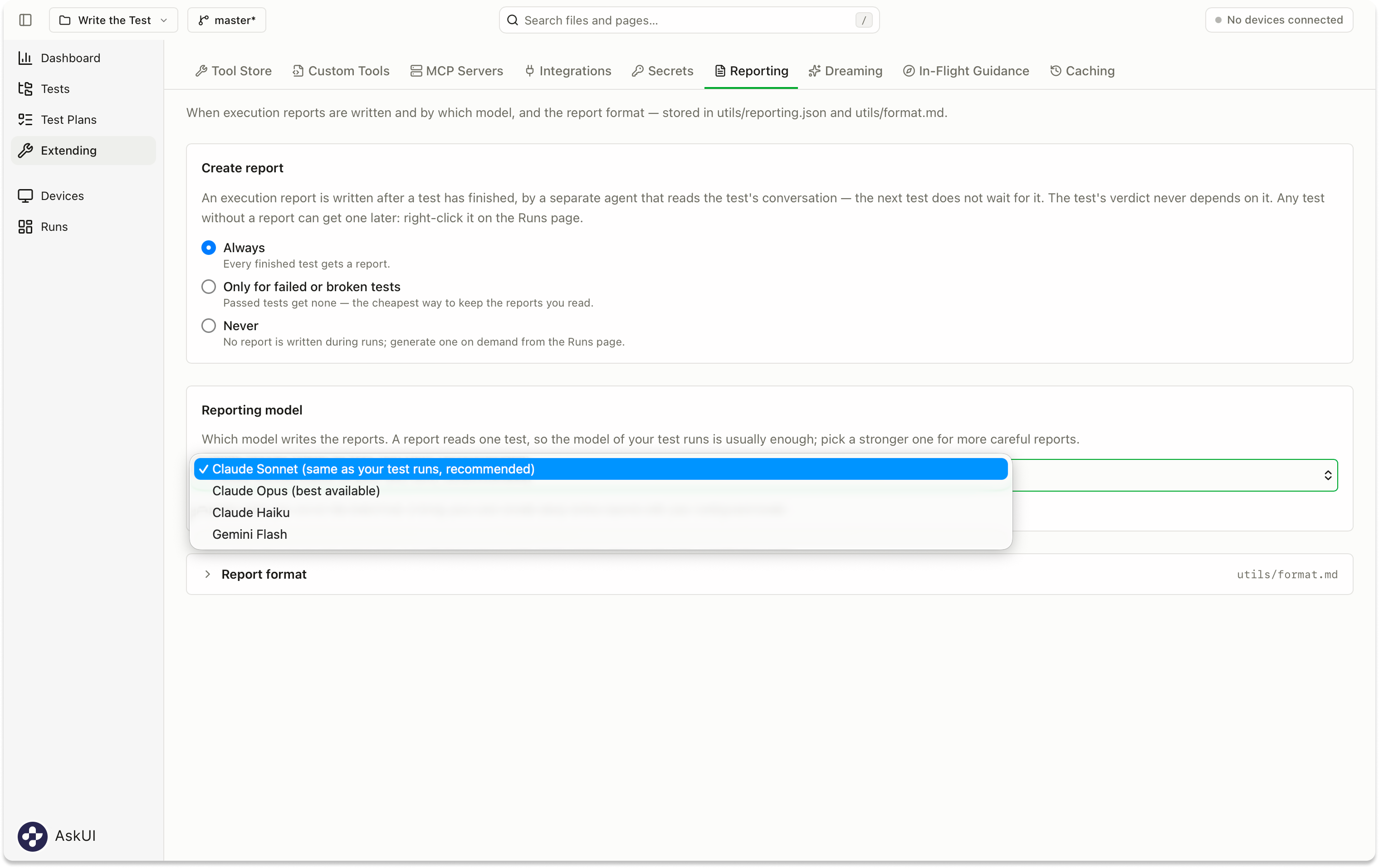
Set the automatic reporting policy and select a reporting model in Extending → Reporting.
From Test Results to Team Action
A useful test result should let the next person pick up the work without reconstructing the run. A developer can begin with the observed discrepancy, a tester can assess whether the checks cover the intended requirements, and a team lead can use the results alongside execution time and cost to decide where to focus the team’s effort.
This is the role of Report within AskUI’s core concepts: making the work of a testing agent available for people to examine, question, and use. The execution ends, but its findings remain a starting point for the team’s next decision.
FAQ
How quickly can I review and share the results?
Individual execution reports are available within a few seconds after the run completes. Generating the Management Report might take up to a minute, depending on how many execution reports need to be generated with it. All reports can be directly downloaded as PDF (or other formats) and shared with the team.
Does generating a report rerun the test or change its result?
No. An execution report is written from the recorded execution conversation. Generating it later does not rerun the test or change its verdict.
Does a failed test always indicate an application bug?
No. A failed assertion means the observed behavior did not match the test’s expectation. That expectation still needs to be checked against the product requirements. In our Radio example, the test deliberately expected a Presets tab that did not exist. For the full status definitions, see the run report documentation.
What detail can I include in the Management Report PDF?
The Management Report includes charts, statistics, and a list of test results even without bundling. Selecting Bundle the execution reports adds the detailed individual reports in an appendix, including the recorded reason for each result, step-by-step findings, and screenshots.
Leave it unchecked for a concise overview, or include the reports when recipients need to investigate the findings within the same PDF.