 YouYoung Seo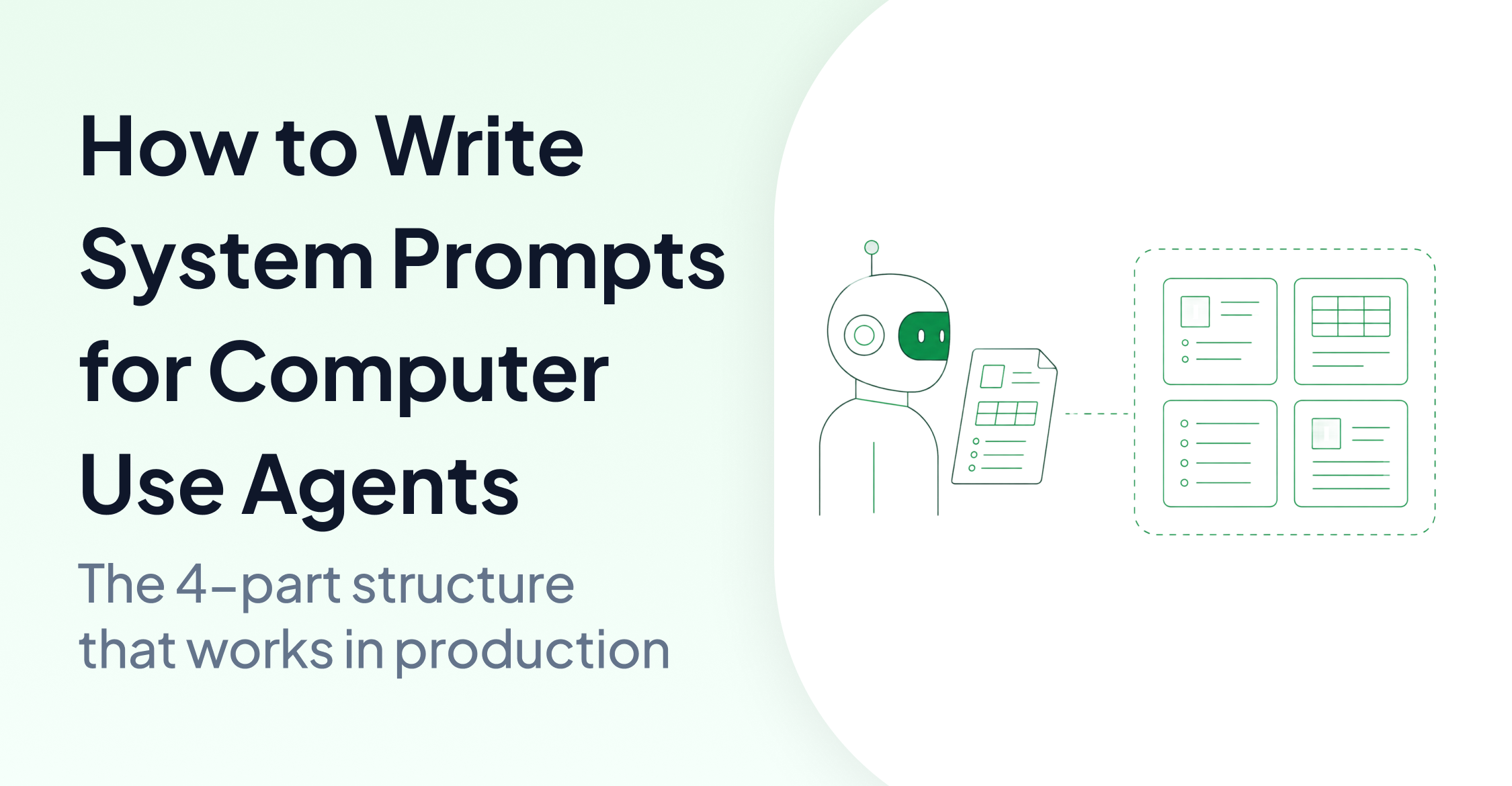
When you buy a new appliance, the manual doesn't teach the machine anything. It teaches you how to use it correctly. A system prompt works the other way around. It's the manual you write for the agent, so it knows how to operate your software the way you intend.
Most engineers either skip this step entirely or give it minimal attention. If your computer use agent keeps failing on the same test cases, the problem is probably not the model. It's the system prompt.
This guide covers what makes system prompts different for computer use agents, the four-part structure that works in production, and real examples from AskUI.
Why System Prompts Work Differently for Computer Use Agents
For a standard LLM chat task like summarizing a document or drafting an email, a short system prompt is fine. The model has enough context to fill in the gaps.
Computer use agents (CUAs) have a lot more to handle. They need to:
- Plan and execute multi-step interactions across screens they've never seen
- Operate different device types with completely different input models (scroll vs. swipe, keyboard vs. touch)
- Recover on their own when something goes wrong, without asking the user
- Tell the difference between a task failure and an infrastructure failure
A vague system prompt falls apart under this complexity. The agent makes assumptions, takes wrong turns, and fails in ways that are hard to reproduce or debug.
What a system prompt actually does for a CUA is closer to reprogramming than instruction-giving. It shapes how the model reasons about every screenshot it sees, every tool call it makes, and every decision point it hits. When that programming is inconsistent or incomplete, the agent behaves unpredictably. Not because the model is bad, but because it's missing information only you have.
The 4-Part Structure Every Agent System Prompt Needs
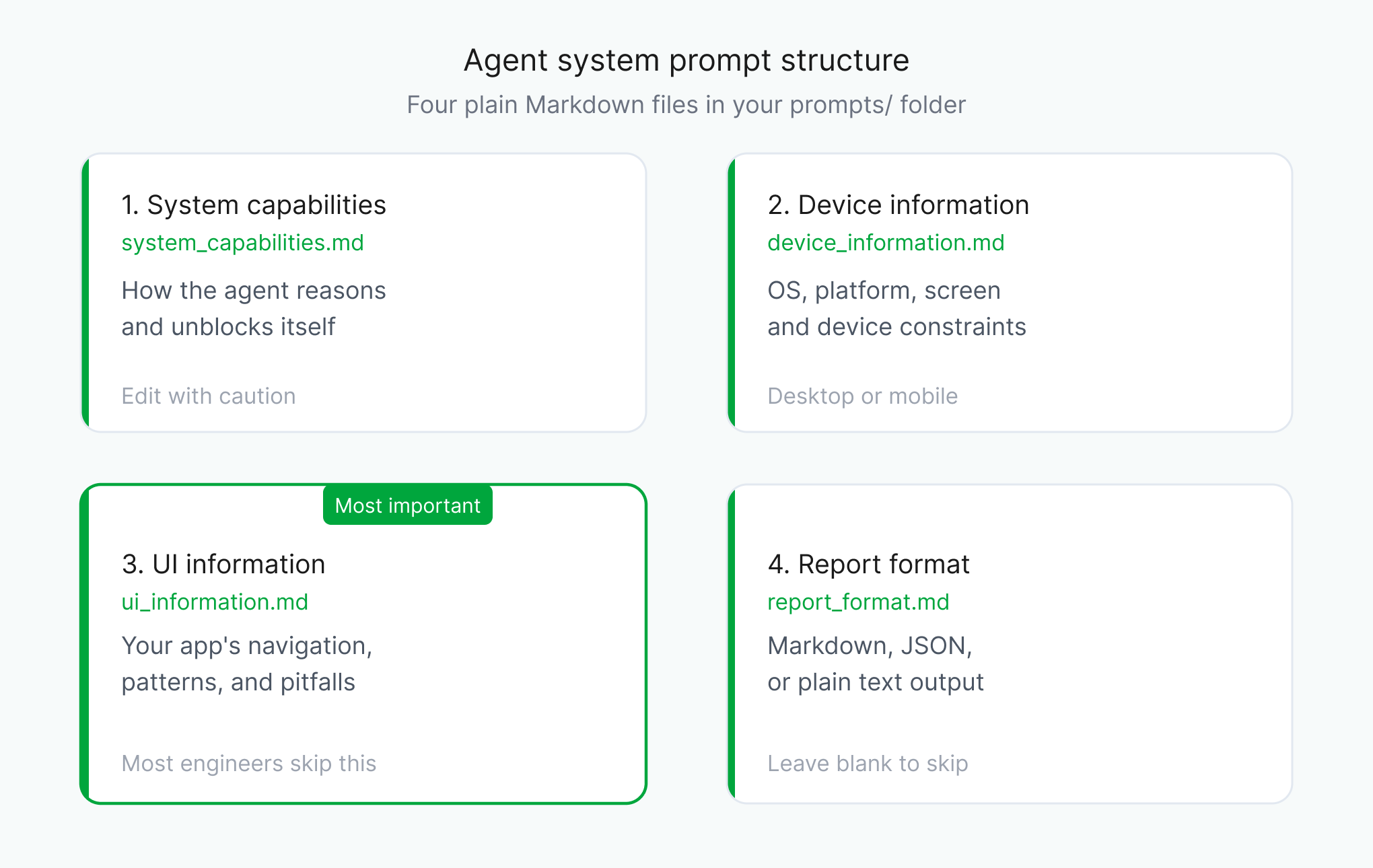
After running computer use agents across desktop, Android, embedded HMI, and web environments, AskUI's engineering team landed on a four-part structure that covers what agents actually need to operate reliably.
1. System Capabilities
This section defines what the agent is, what it's supposed to do, and how it should unblock itself when it gets stuck.
This is the behavioral core of your prompt. It tells the agent how to reason, not just what to do. AskUI's production prompt for computer agents includes guidance like checking other available displays when an element isn't found, chaining multiple tool calls into a single request where possible, and distinguishing between retryable errors and hard infrastructure failures. Be conservative when editing this section. Changes here affect how the agent reasons across all situations, not just the one you're targeting.
2. Device Information
Tell the agent exactly what it's operating on.
- Is it a desktop (Windows / macOS / Linux) or a mobile device (Android / iOS)?
- Is there internet access?
- Are there device-specific constraints it needs to work around?
This seems obvious, but missing device context is a common source of agent errors. An agent that doesn't know it's operating an Android device may try to use scroll interactions instead of swipe, or look for a browser toolbar that doesn't exist.
3. UI Information
This is the most important part of the prompt, and the one most engineers skip or write too briefly. See the UI Information section below for a full breakdown.
4. Report Format
Once the agent finishes execution, it can produce a structured report. This section tells it how.
Specify the format (Markdown, JSON, plain text), the structure, and what to include: actions taken, errors encountered, final state. If you don't want a report at all, say so explicitly. Leaving this undefined often results in inconsistent output that's hard to parse downstream.
Additional Rules
Additional Rules are not part of the core system prompt. They let you tune agent behavior for specific situations without touching the global prompt. See the How AskUI Organizes Agent System Prompts section below for how this works in practice.
If the agent consistently fails on a particular interaction (say, it can never find the save button on your UI), describe it here in detail: where it is, what it looks like, when it appears, and what to do if it's not immediately visible. Include both what to do and what not to do.
UI Information: Why It's the Most Important Part of Your Agent System Prompt
Nobody knows the UI better than you do. The agent has never seen your application before. Every non-standard interaction pattern, every quirk, every place where first-time users get lost. The agent will hit all of those without the context to recover.
A computer use agent reasons about what's on the screen, but it can't infer the rules of your specific application from a screenshot alone. It sees a button. It doesn't know that button only works after a form is validated. It sees a menu. It doesn't know that menu has a 300ms animation delay before it registers taps.
In practice, when agents fail on specific test cases, the fix is often in the UI Information section. Either it's missing entirely, or it describes the happy path but not the edge cases.
Good UI information covers:
- How navigation works on this specific interface
- Where key functions are located
- What interaction patterns are non-standard (e.g., a button that looks disabled but is actually clickable)
- What the agent should NOT do (common pitfalls)
How to Write Effective UI Information for a Computer Use Agent
Describe what not to do. Negative constraints are as important as positive instructions. "Do not click the back button during a multi-step form. Use the Previous button in the form footer instead" prevents an entire class of failure.
Explain non-standard patterns explicitly. If your UI does something unusual (a drag-to-confirm interaction, a long-press menu, a modal that appears behind a loading overlay), write it down. The agent has no prior exposure to your application's conventions.
Include recovery instructions. What should the agent do if it ends up on an unexpected screen? If it can't find an element after scrolling? These recovery paths matter as much as the primary flow.
The more specific you are here, the better the agent performs. Over-specification is far less risky than under-specification.
What System Prompts Look Like in Practice
In AskUI, system prompts live as plain Markdown files in a prompts/ folder. Each part of the prompt has its own file:
prompts/
├── system_capabilities.md
├── device_information.md
├── ui_information.md
└── report_format.md
The agent loads these files automatically when it runs. ui_information.md is where you describe your specific application: how navigation works, where key functions are located, what interaction patterns are non-standard, and what the agent should not do. This is what most engineers skip or write too briefly. The more specific you are here, the better the agent performs.
How to Handle Infrastructure Errors in Agent System Prompts
One of the most important things to include in your System Capabilities is explicit infrastructure error handling, a section most teams don't think about until they've lost hours debugging:
Infrastructure errors (connection lost, session expired, permission denied, RPC errors)
are different from task failures. You CANNOT fix infrastructure problems by retrying.
If a tool returns an infrastructure error, retry the SAME tool call ONCE.
If it fails again, STOP IMMEDIATELY and document the error.
Without this, an agent will loop indefinitely on a broken connection, burning tokens and producing no useful output.
How to Separate Test Outcome from Execution Completion in Agent Prompts
Explicitly separating test success from execution completion prevents a common and hard-to-catch failure mode:
IMPORTANT: Completing all test steps does NOT automatically mean the test PASSED.
A test is only successful if the EXPECTED OUTCOME is actually observed.

- EXECUTION SUCCESS: You performed all the steps without technical errors
- TEST SUCCESS: The expected outcome/behavior was observed in the UI
- These are NOT the same.
An agent without this distinction will often report a test as passed because it clicked all the right buttons, even when the expected UI state never appeared.
Frequently Asked Questions About Computer Use Agent System Prompts
What should a computer use agent system prompt include?
In AskUI, an agent system prompt consists of four separate Markdown files: system_capabilities.md, device_information.md, ui_information.md, and report_format.md. Of these, ui_information.md is the most important. It tells the agent how your specific application works, where key functions are located, and what interaction patterns are non-standard.
Why does my computer use agent keep failing on the same test cases?
If your computer use agent keeps failing on the same test cases, the problem is often in the UI Information section of your system prompt. Either it's missing entirely, or it only describes the happy path without covering edge cases and recovery instructions. Adding specific context about your UI, including what not to do, fixes most recurring failures.
How long should a system prompt be for a computer use agent?
A system prompt for a computer use agent should be as detailed as your UI requires. The instinct to keep prompts short works against you here. Agents operate in open-ended environments with no fallback, so a prompt that only covers the happy path will fail on the first unexpected screen state. If you think you're being way too specific, you're probably at the right level.
What is the difference between a task failure and an infrastructure failure in agent testing?
A task failure means the agent couldn't complete the goal. For example, it couldn't find a button or a form didn't submit correctly. An infrastructure failure means the underlying system the agent uses to interact with the device is broken: connection lost, session expired, or RPC error. These two categories require completely different responses. Task failures can be retried with a different approach, but infrastructure failures cannot be fixed by the agent and require an immediate stop.
Can I use the same system prompt for desktop and Android agents?
No. Desktop and Android agents require separate system prompts because the devices use completely different input models (scroll vs. swipe, keyboard vs. touch) and have different constraints. An agent without the correct device context will attempt interactions that don't exist on the target platform. AskUI ships separate prompt files for desktop, Android, web, and multi-device agents for this reason.
What is trajectory caching in agent testing?
Trajectory caching is a technique where a successfully executed test is recorded as a JSON file containing every tool use action (mouse movements, clicks, typing). On subsequent runs, the agent replays that cached sequence directly instead of re-reasoning from scratch, reducing token cost and speeding up execution. AskUI supports three caching strategies: record, execute, and auto. After any replay, the agent verifies the result and makes corrections if the UI state has changed.
Common Mistakes That Break Agent System Prompt Reliability
Contradicting instructions. If one section tells the agent to stop immediately on error and another tells it to retry up to three times, the agent will behave unpredictably. Every rule in your prompt needs to be consistent with every other rule.
Prompts that are too short. The instinct to keep prompts brief works against you with CUAs. These agents operate in open-ended environments with no fallback. A prompt that covers the happy path but nothing else will fail on the first unexpected screen state.
Mixed languages. If your system prompt is in English but your test case definitions are in German, agent performance will degrade. Stick to one language throughout: prompt, test cases, and task definitions.
Assuming the agent knows your UI. The agent has no prior knowledge of your application. Every interaction pattern that feels obvious to a human tester is invisible context to the agent. Write it down.
Missing infrastructure error handling. Without explicit rules for what to do when a tool fails at the infrastructure level, agents loop indefinitely. Define the behavior: retry once, then stop and document.
How AskUI Organizes Agent System Prompts
In AskUI, system prompts are plain Markdown files with no code required. They live in a prompts/ folder inside your test project, and the agent loads them automatically at runtime:
prompts/
├── system_capabilities.md   # how the agent reasons and behaves
├── device_information.md    # what machine it's operating
├── ui_information.md        # your application-specific context
└── report_format.md         # how to structure test results
Additional behavior tuning lives in separate rules.md files placed inside test folders, so you can adjust how the agent behaves per folder without touching the global prompt.
The full project structure and prompt examples are available in the AskUI Demo Project on GitHub.
Summary
System prompts for computer use agents need to cover more ground than chat model prompts. They need to anticipate failure modes and provide context the agent has no other way to access.
The four-part structure (System Capabilities, Device Information, UI Information, Report Format) gives you a framework for covering that ground systematically. Of those four parts, UI Information is where most of the performance gains come from, because it's the one only you can write.
If your agent is failing consistently on specific test cases, start there.