

TLDR
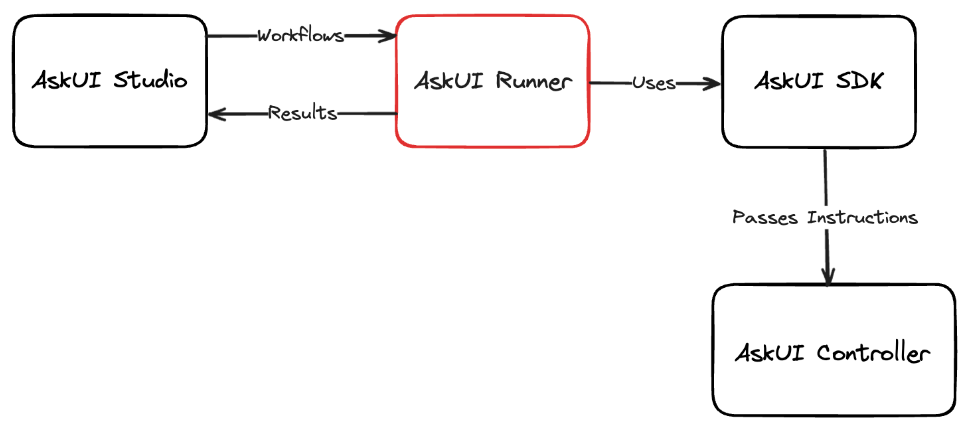
This guide provides a step-by-step process for setting up and executing an AskUI self-hosted runner on a local Windows machine. By installing the Remote Device Controller, creating a workflow in AskUI Studio, and using the AskUI Development Environment (ADE), users can automate tasks directly on their Windows device, enabling efficient and locally controlled workflow execution.
Introduction
This guide is designed to walk you through the process of setting up and running an AskUI self-hosted runner on your local Windows machine. A self-hosted runner downloads and executes workflows created in AskUI Studio directly on your device. To follow this guide, it is assumed that you already have an AskUI Studio account and a basic understanding of how to create workflows. If you haven't already, take a moment to create an account in AskUI Studio. Let's dive in and start automating!
The Foundation: Installing the Remote Device Controller
The first step is installing the Remote Device Controller, which includes the AskUI Development Kit (SDK). This component is crucial for interacting with your Windows environment and executing the workflows. Ensure you follow the installation instructions carefully to avoid common pitfalls.
Crafting Your First Workflow in AskUI Studio
Next, we'll create a sample workflow in AskUI Studio to test our self-hosted runner. This example will demonstrate a simple task: opening Wordpad and moving the mouse cursor.
Steps to Create the "Code" Workflow:
- In AskUI Studio, create a new workflow named "Code."
- Open Wordpad:
- Press the Windows key.
- Type "wordpad" in the search field.
- Press Enter to open the Wordpad application.
- Save the workflow by clicking the "SAVE" button.
This basic workflow will serve as a proof-of-concept to ensure our runner is functioning correctly.
Configuring and Starting the AskUI Development Environment (ADE)
The AskUI Development Environment (ADE) is your command center for configuring your installation, starting the AskUI Controller, creating new AskUI projects, and running workflows.
-
Open a Terminal: It is recommended to use PowerShell for this process.
-
Authenticate: Use the following command to authenticate and connect your ADE to your AskUI account, replacing the placeholders with your actual credentials:
askui init --username <YOUR_USERNAME> --password <YOUR_PASSWORD>
This authentication step ensures that your ADE is properly linked to your AskUI Studio account.
Activating the AskUI Controller
With the ADE configured, it's time to start the AskUI Controller, which acts as the bridge between AskUI and your Windows environment. Run the command askui controller start in the askui-shell. This command initiates the controller using the default DisplayNum option if you have only one display. A properly running controller is essential for seamless workflow execution.
Launching the Self-Hosted Runner
Now for the main event: starting the self-hosted runner. This runner will listen for workflows assigned to it and execute them on your local machine.
-
Open another
askui-shellas you did in the previous step. -
Run the following command, replacing the placeholders with your actual access token and workflow ID:
askui runner start --access-token <YOUR_ACCESS_TOKEN> --workflow-id <YOUR_WORKFLOW_ID> --tags windowsThe
--tags windowsoption is crucial; it tells the runner which workflows to execute based on the assigned tags.
Executing the Workflow from AskUI Studio
The final step is triggering the workflow from AskUI Studio. This will instruct the self-hosted runner to execute the workflow on your Windows machine.
- Navigate to the "Runs" tab in the AskUI Studio.
- Click "+ New run" and create a new run, ensuring that the tag matches the one specified in the previous step (e.g., "windows").
- Click the "CREATE" button. Watch as the AskUI Runner springs into action, running the selected workflow directly on your local Windows machine.
Conclusion
Congratulations! You have successfully set up and run an AskUI self-hosted runner on your local Windows machine. You can now automate tasks using workflows created in AskUI Studio directly on your device, giving you greater control and efficiency. For more in-depth information about ADE and self-hosted runners on Windows, refer to the official AskUI documentation. If you encounter any issues or have further questions, consult the comprehensive AskUI resources. Happy automating!
FAQ
How do I obtain my access token for the self-hosted runner?
Your access token can be found in your AskUI Studio account settings, usually under a section related to API access or runner configuration. This token is essential for authenticating your runner and allowing it to communicate securely with AskUI Studio.
What if the AskUI Controller fails to start?
Ensure that you have the necessary dependencies installed, and that no other applications are interfering with the ports used by the AskUI Controller. Check the logs for specific error messages, and consult the AskUI documentation for troubleshooting steps. Additionally, verify that your system meets the minimum requirements for running the controller.
Can I run multiple self-hosted runners on the same machine?
Yes, it is possible to run multiple self-hosted runners on the same machine, but you'll need to configure each runner with unique settings to avoid conflicts. This includes using different ports, access tokens, and tags to manage workflow assignments.
How do I update the AskUI Development Kit (SDK)?
The AskUI Development Kit (SDK) is typically updated through the Remote Device Controller. Check for updates within the controller's settings or reinstall the latest version to ensure you have the most recent features and fixes. Consult the official AskUI documentation for specific update instructions.